.png?width=200&height=60&name=Coursemojo%20logo%20(4).png)
The override tool will allow you to change Mojo’s question bucketing in cases where Mojo is missing nuance when evaluating a student’s answer. While we don’t anticipate you needing to use this tool frequently, it does shift the power back to teachers if they don’t agree with Mojo’s evaluation, and it gives our team helpful data on where we can continue to make prompt refinements.
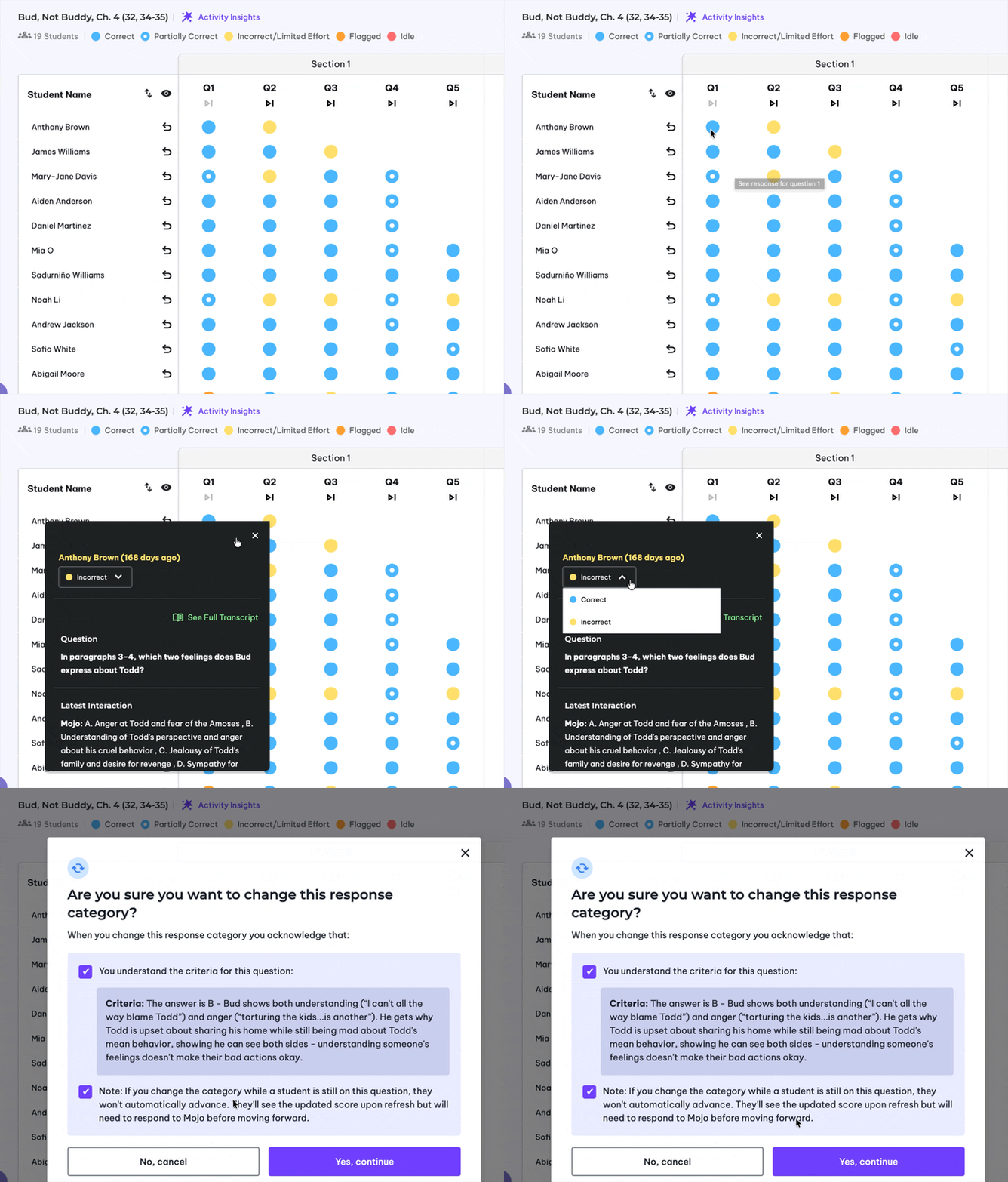
Note: All students are sample students
How It Works: Step-by-Step
Step 1: Click the override button for a student on the dashboard. Note that these actions can also be done in the transcript view.
You'll see your class's progress by question. To override an individual student, click on their response dot.
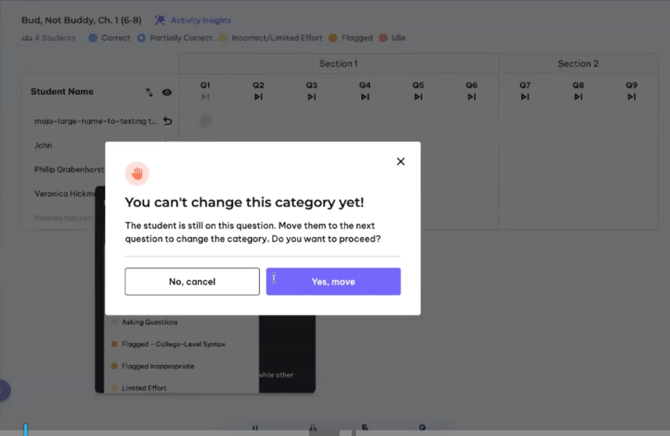
Step 2: If the student is still in between attempts for a question, you will be prompted to move them to the next question first, before overriding
If you try to change the score category while the student is still attempting the question, Mojo will show this message: "You can't change this category yet! The student is still on this question. Move them to the next question to change the category. Do you want to proceed?"
Click Yes, move to fast-forward the student to the next question.
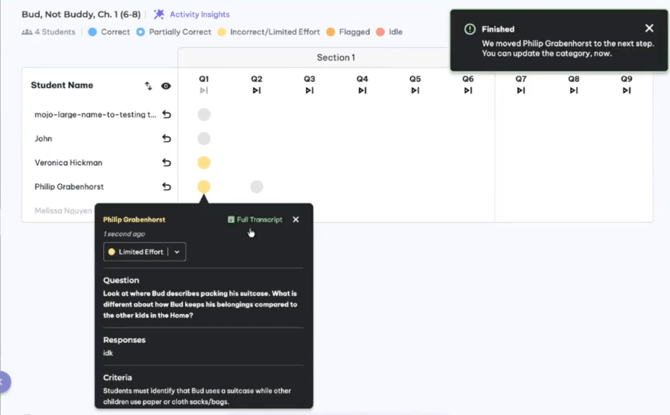
Step 3: You'll get a confirmation that the student was moved.
A notification will appear in the top right corner: "Finished — We moved [student] to the next step. You can update the category, now."
Step 4: Now go back and update the score.
Once the student has been moved, you'll be prompted to confirm the score change. You'll see the question criteria to help you make the right call. Click Yes, continue to save.
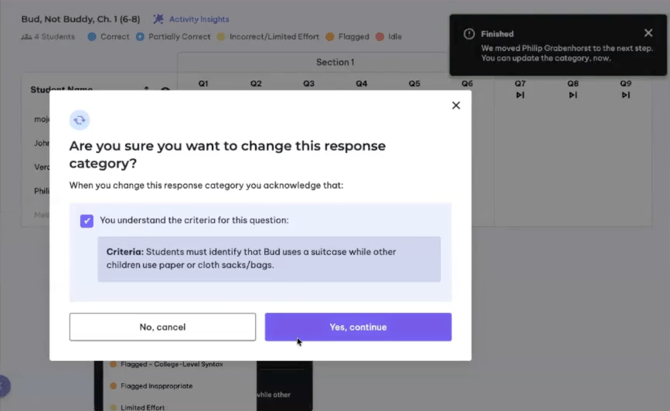
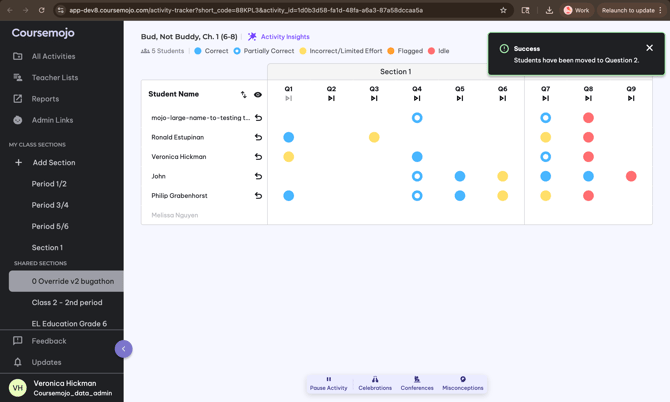
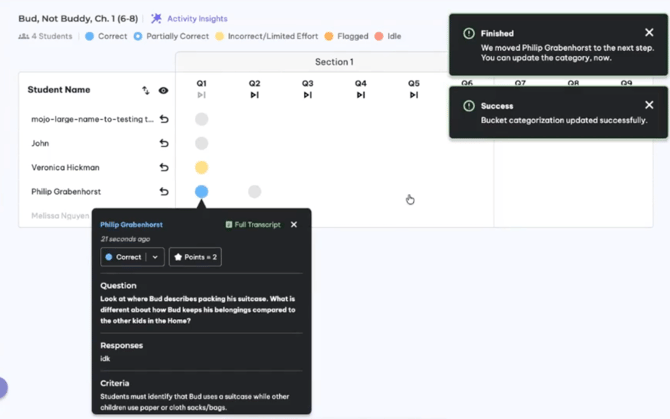
Step 5: Done! You'll see a success confirmation.
Two notifications will appear confirming both actions were completed: "Finished" and "Bucket categorization updated successfully."
⚠️ Important Notes
1. You can also override student scores from the individual student transcripts
2. If the activity is paused, you cannot fast-forward students. You'll see this message: "You're Paused — We can't fast-forward that student right now. Please resume your activity and try again." Resume the activity first, then override.
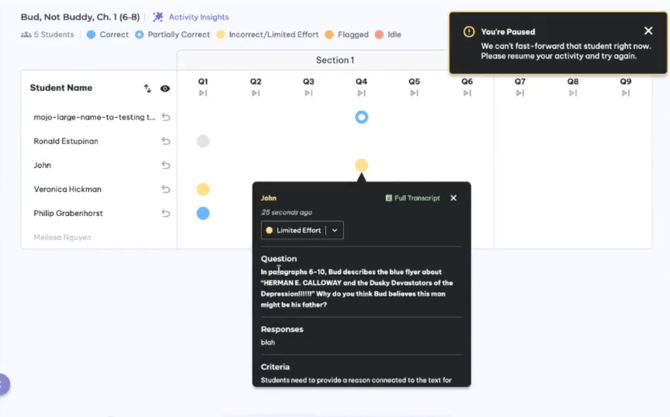
Using the top-row fast-forward buttons moves your entire class, not just one student. Use the individual student override if you only want to move one person.
The video below walks you through how to use the Score/Bucket Teacher Override feature to adjust Mojo's question bucketing directly from the activity dashboard or student transcript — giving you more control when Mojo is too narrow or too generous in evaluating a student's answer.
Note: This video reflects the previous version of the feature. See the updated steps above for the latest experience.
When you override a student's score, the process now happens in two separate steps:
- Fast-forward first — the student is automatically moved to the next question
- Then update the score — you go back and change their response category after they've been moved