.png?width=200&height=60&name=Coursemojo%20logo%20(4).png)
Devices
- Microsoft Windows Laptops/PC
- Mac Laptops
- Chrome OS/Chromebooks (preferably dual-core, 4GB RAM - standard education model)
- iOS tablets that run our supported browsers (we have not done testing on Android/non-iOS tablets)
- Mobile/Phones currently not supported
Browsers
- Google Chrome
- Microsoft Edge
- Apple Safari
- Mozilla Firefox
Internet Connection
- An access point per classroom is ideal (25-30 students sharing an access point)
- At least 2-3Mbps for 25-30 students using Mojo simultaneously
Allowlist
- *.coursemojo.com, specifically app.coursemojo.com
- We just use the standard secure port for the web: 443. Please let us know if WebSockets are potentially blocked. You can test this by being on the school/district wifi and going to this website: https://websocketstest.com/
- Ensure that we are also unblocked on the firewall level, and any other umbrella security software you might be using (GoGuardian, Securly, Linewize)
SSO
- Microsoft SSO
- Google - District/School Google Admin must add Mojo as a trusted app for students and staff. Instructions to share with Google Admin:
- Login to Google Admin
- In the search bar, search for API Controls, or App Access Control -- you will see a window like the screenshot below
- From there, click “View List” of Configured Apps
- Click “Add App” and select OAuth App Name or Client ID
- The client ID to search for Coursemojo: 178800872353-vg3blnqnhojmlpg95gl2i24spvflo6v1.apps.googleusercontent.com
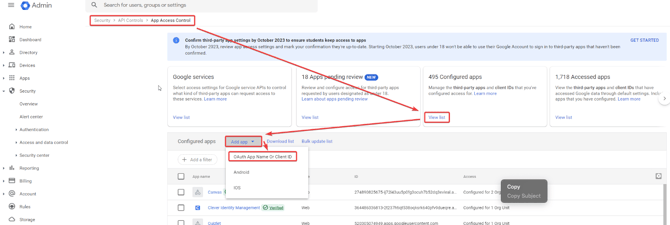
.gif?width=670&height=375&name=Screen%20Recording%202025-09-10%20at%2012.46.20%20PM%20(1).gif)
- Clever - District Clever Admin must approve sharing with Mojo. We initiate the sharing request ourselves once we know exactly which schools are using Mojo.
- ClassLink - enable roster/SSO sharing with us on ClassLink