
You can now choose when students can start an activity and when they can no longer work on it. By default, activities stay open, just like before.
Scheduling an activity
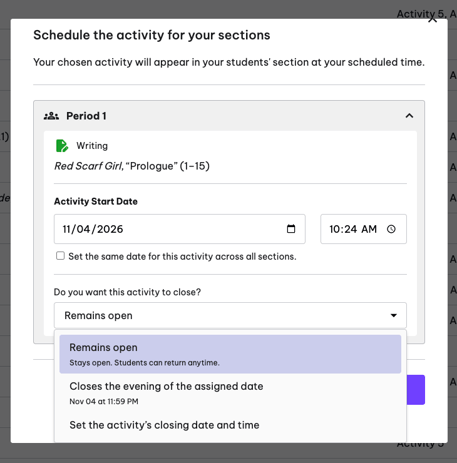
When you schedule an activity, you can pick the Activity Start Date and time it opens. You can also choose whether it closes:
- Remains open (default): students can return anytime
- Closes the evening of the assigned date (11:59 PM your local time)
- Set the activity’s closing date and time
Opening or closing an activity anytime
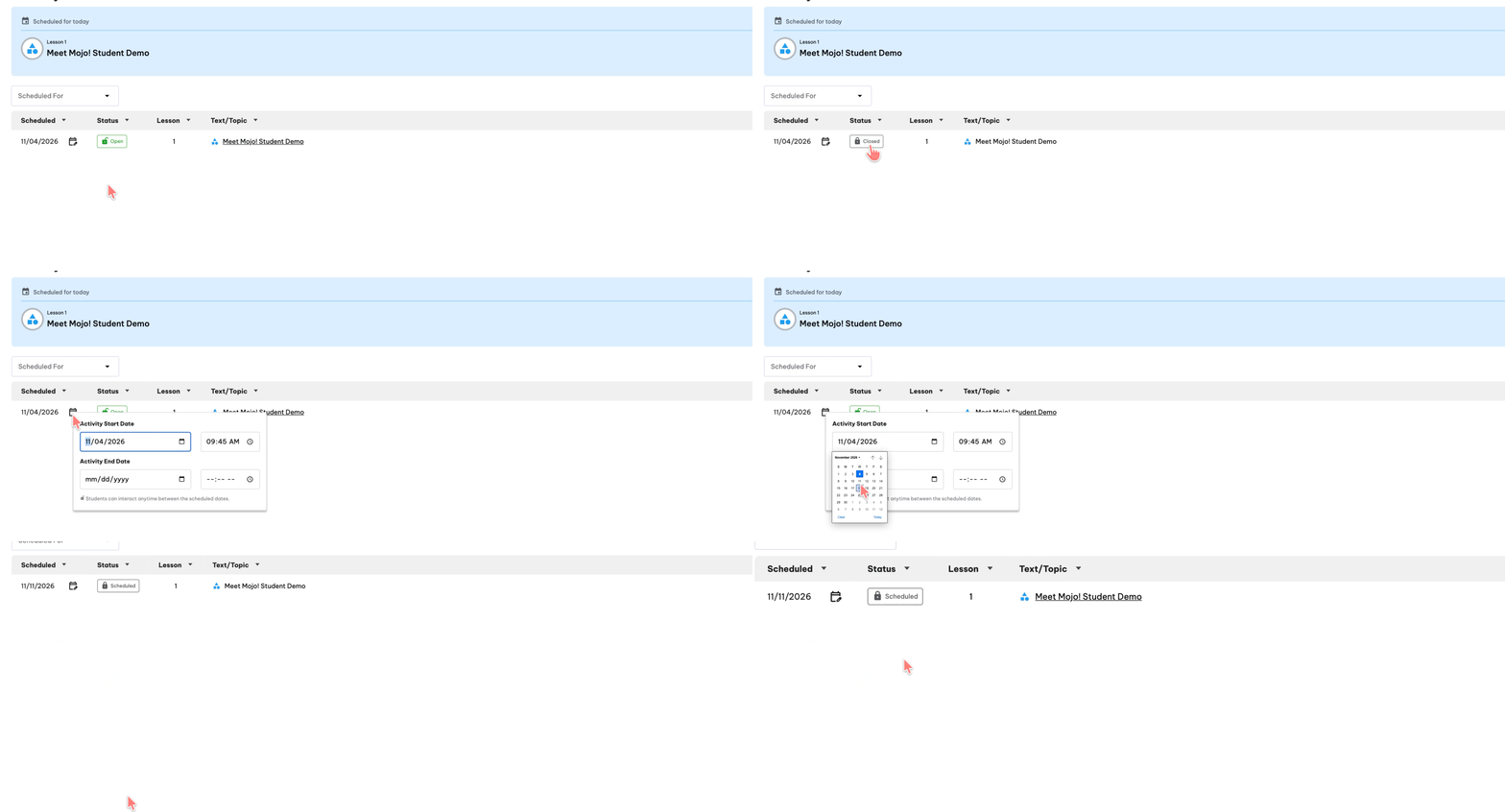
On your section page, click an activity’s status to switch it between Open and Closed. Activities scheduled for a later date show as Scheduled.
What students see
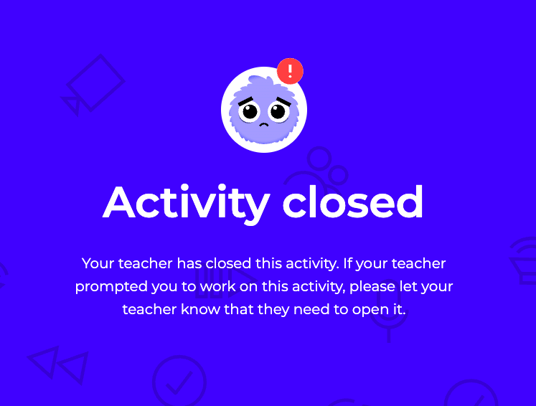
If a student hasn’t started the activity, they’ll see that it’s closed:
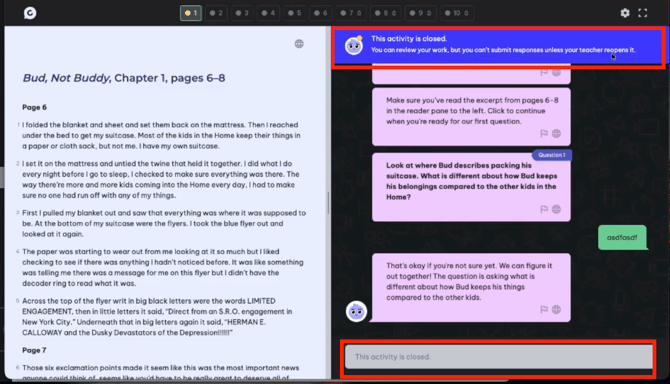
If they already started, they can review their work but can’t submit new responses:
Note: You can’t move, skip, retry, restart, or pause students in a closed activity. Reopen it first.