.png?width=200&height=60&name=Coursemojo%20logo%20(4).png)
Accessing Reports
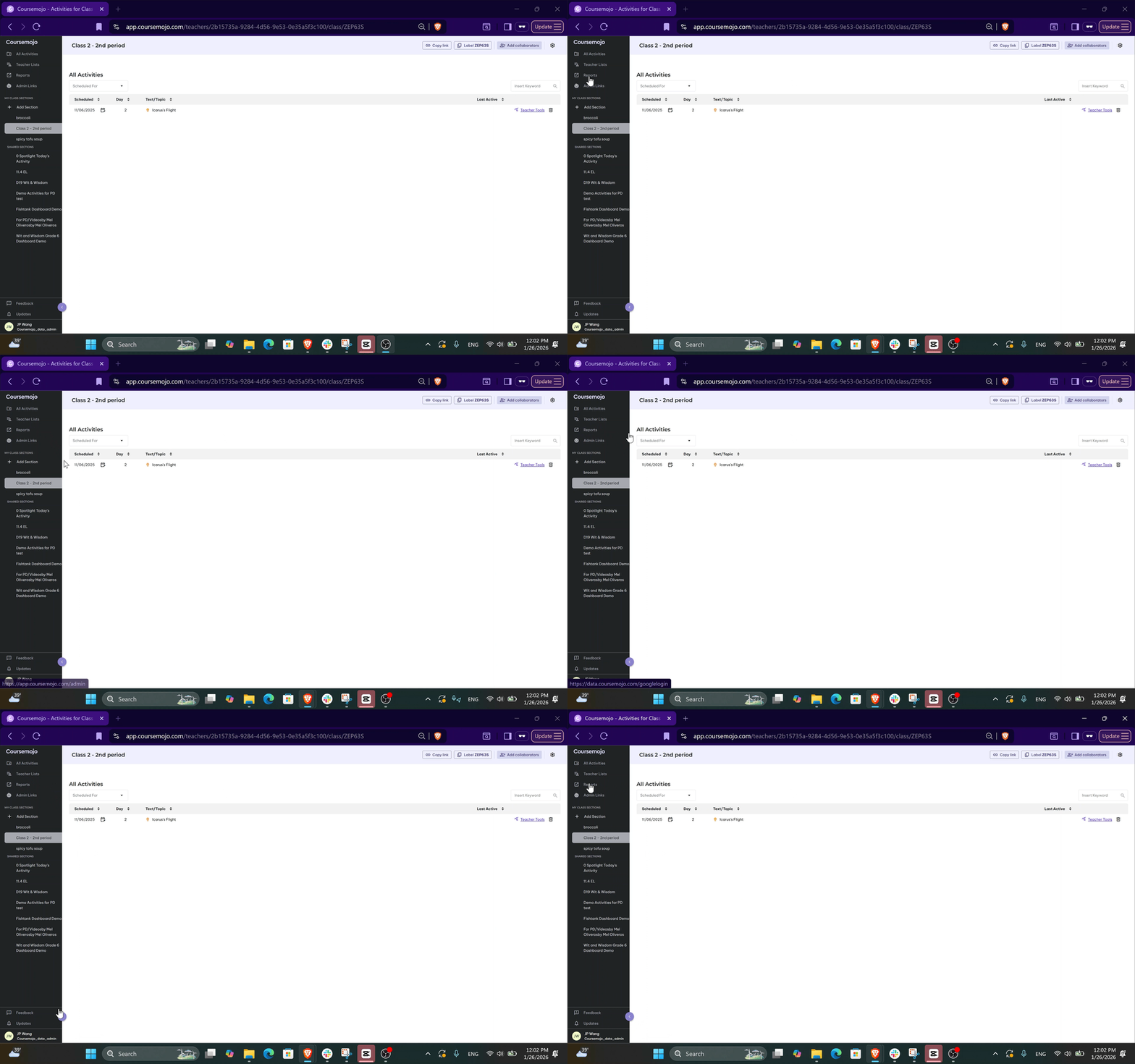
Once you're logged into Coursemojo, look for the Reports tab in the left-hand navigation.
💡 Don't see it? Click the arrow in the bottom left corner to expand the navigation column.
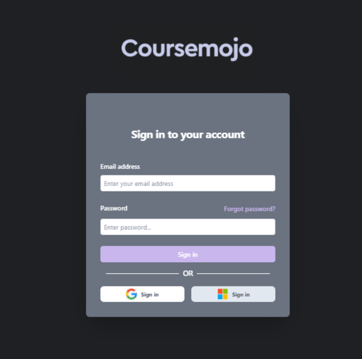
Clicking Reports will prompt you to log in with Google or Microsoft. Use the same email address you use to access Coursemojo, along with your Google or Microsoft password.
❗ If you're unable to log in or don't see the Reports tab, email help@coursemojo.com or click the Feedback tab for assistance.
What Teachers Can See
As a teacher, you'll have access to three sections within Reports.
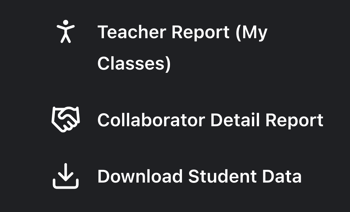
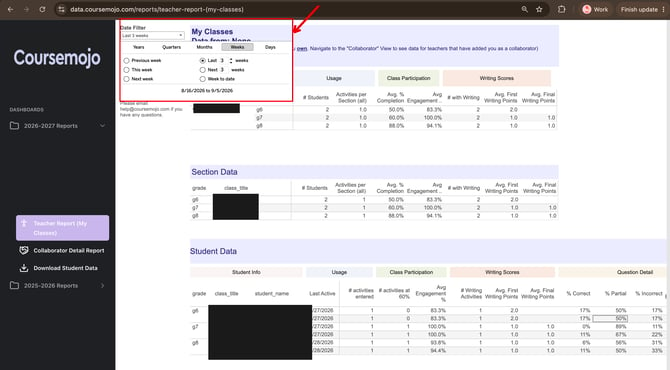
1. Your Weekly Teacher Reports
- Use the Date Filter dropdown to filter by the time range you want to view.
- Hover over the column header icons to see definitions for each data field.
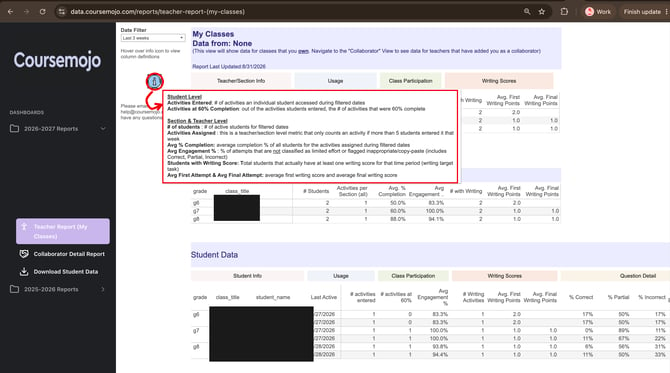
2. Collaborators Tab
On the tab below, you can see collaborators' sections and filter by the time range you want to view. This view will show you the data of any other teacher that added you as a collaborator for their sections.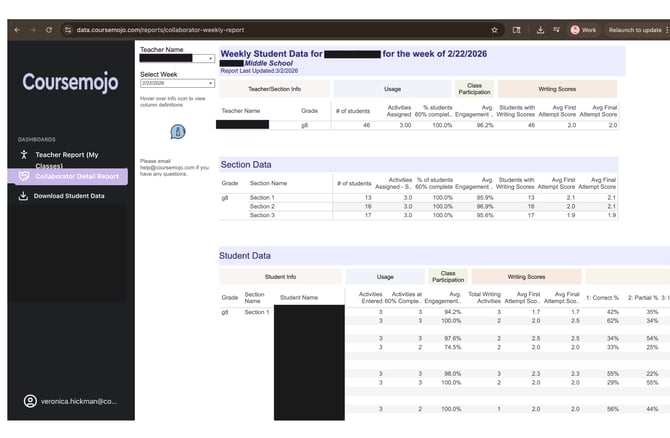
3. Data Download Report
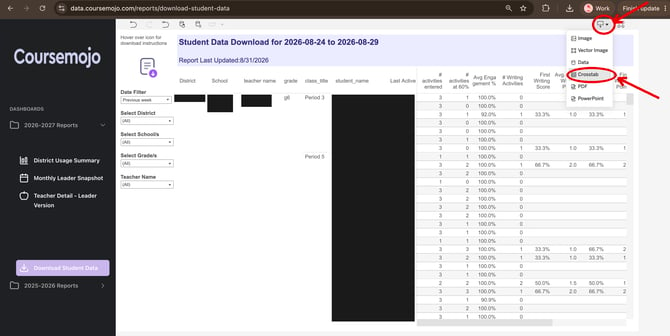
Click the Data Download tab to access student-level data.
- Use the Date Filter to choose the time range for the student-level data you want to download.
- Use the available filters - District, School, Grade, and Teacher Name to narrow down to the teachers and sections you have access to.
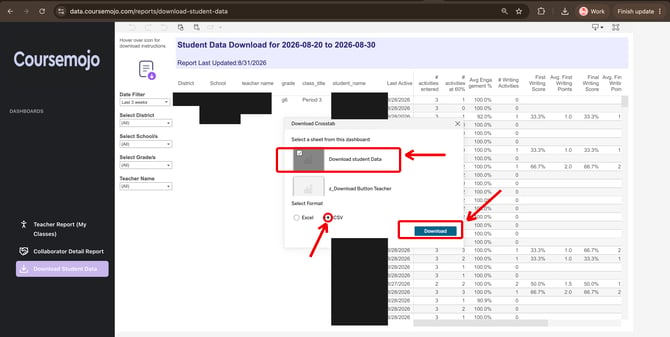
- To download: click the download button in the top right corner → select Crosstab → select CSV.
Important Notes
- Reports update weekly on Monday afternoons. The best time to check is Monday evening or Tuesday morning.
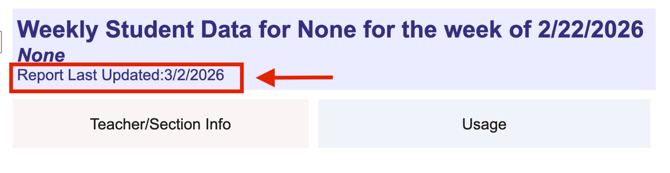
- Always check the "Last Update" date at the top of each report view to confirm whether the data has refreshed for the current week.
Note: We're also working on a more regular refresh cadence that will be available later this Fall — stay tuned!
Need Help?
Email help@coursemojo.com or click the Feedback button inside Coursemojo.