.png?width=200&height=60&name=Coursemojo%20logo%20(4).png)
Accessing Reports
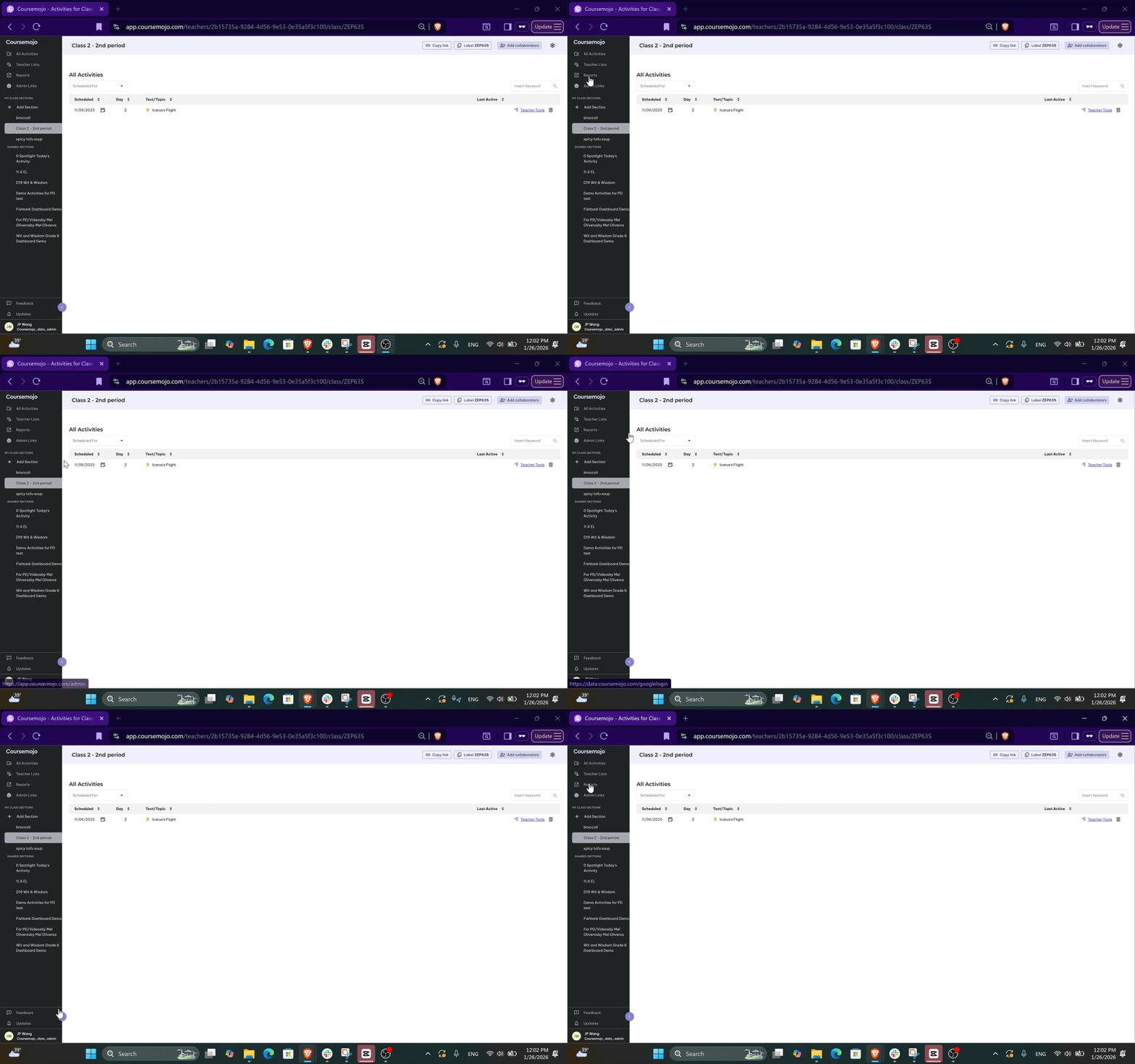
Once you're logged into Coursemojo, look for the Reports tab in the left-hand navigation.
💡 Don't see it? Click the arrow in the bottom left corner to expand the navigation column.
Clicking Reports will prompt you to log in with Google or Microsoft. Use the same email address you use to access Coursemojo, along with your Google or Microsoft password.
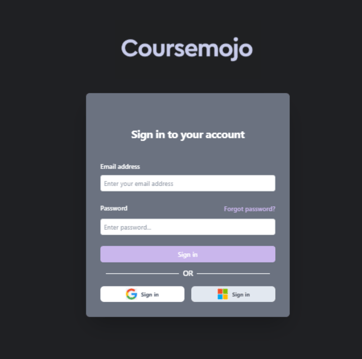
❗ If you're unable to log in or don't see the Reports tab, email help@coursemojo.com or click the Feedback tab for assistance.
The Teacher Lists Tab
Upon logging into Coursemojo, district leaders will see a Teacher Lists tab in addition to the Reports tab. Clicking on this will display the teachers you oversee and their sections.
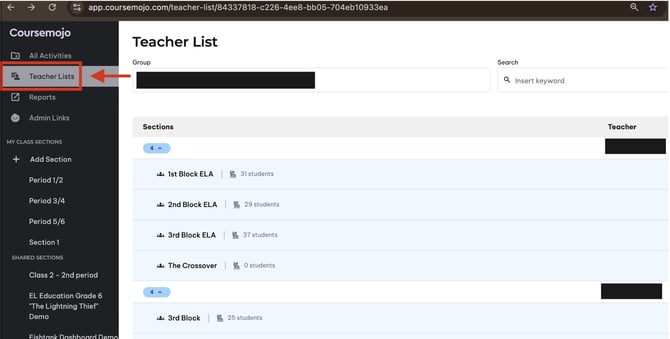
From here, you can click and view their sections, lessons, and access each of their dashboards with student data.
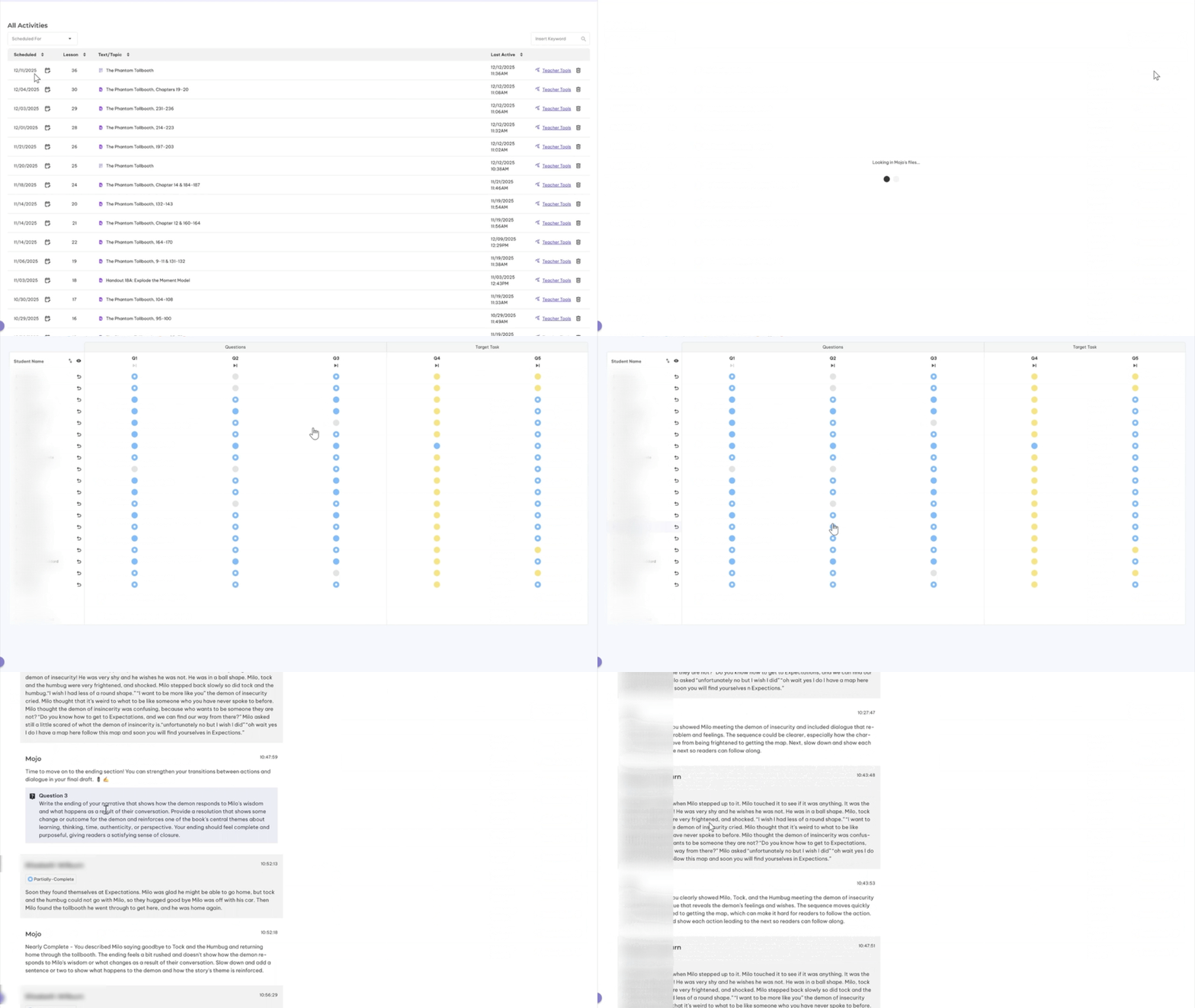
💡 If a teacher's name doesn't appear here, that means they have not started using Coursemojo yet. If they have started using Mojo and you still don't see their name, please email help@coursemojo.com or click the Feedback tab for assistance.
Note: The Teacher Lists tab updates in real-time — unlike the weekly Reports data.
What District Leaders Can See in Reports
After logging into Reports, district leaders will have access to six sections.
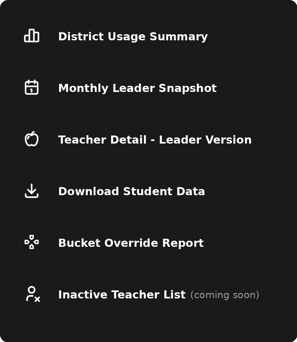
1. District Usage
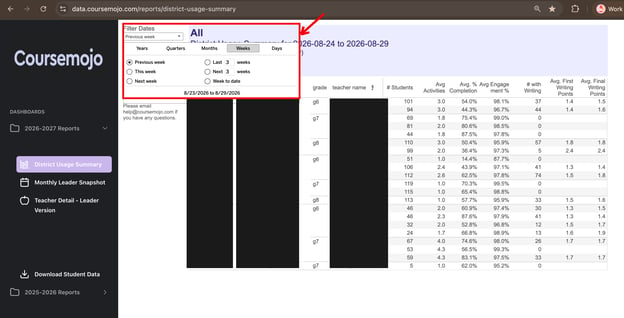
- Displays data for all schools you oversee.
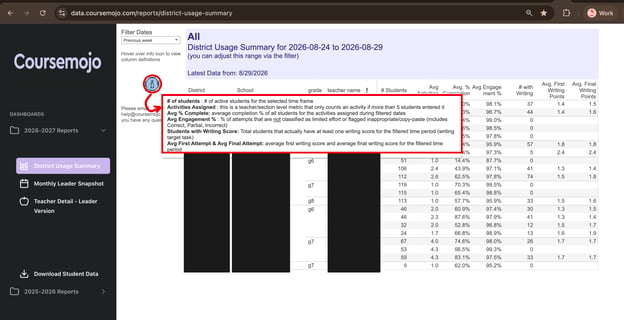
- Hover over the info icon to see definitions for each data field.
- Use the Filter Dates dropdown to filter by the time range you want to view. It defaults to the previous week's data.
2. Monthly Leader Snapshot
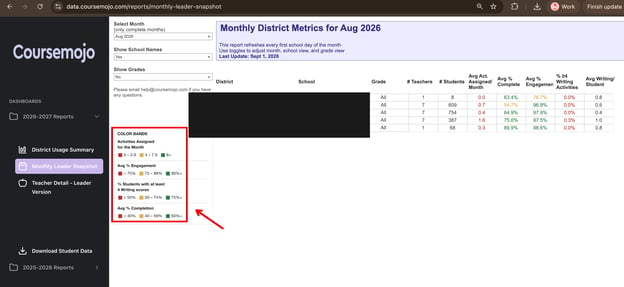
This report shows some of the color coded metrics we're tracking at the district and school level.
- Use the Select Month dropdown to choose the month, and toggle Show School Names and Show Grades to Yes/No depending on the level of detail you want.
- Refer to the Color Bands key to interpret the color coded metrics.
- This report updates once a month, with last month's data — it refreshes every first school day of the month.
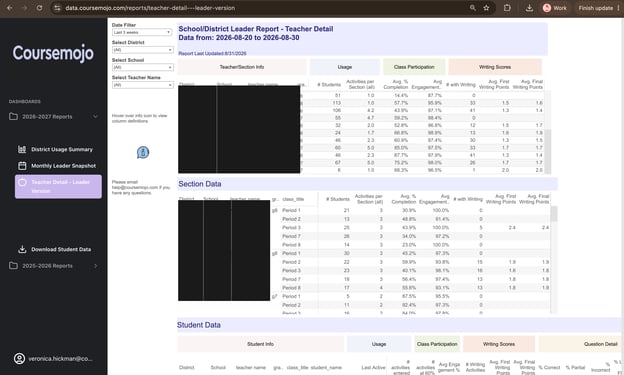
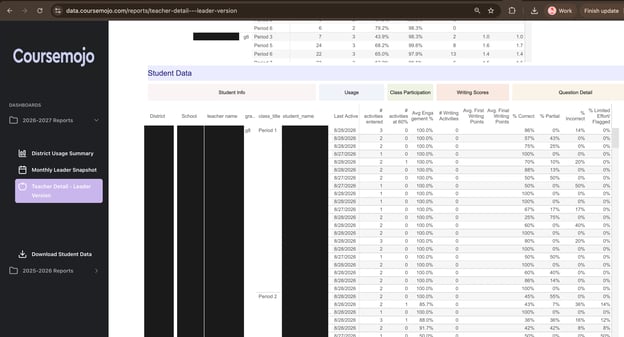
3. Teacher Detail - Leader Version
Use the Date Filter to choose the time range, and the District, School, and Teacher Name filters to get a granular view of sections and student data. This is the same view that individual teachers have access to.
4. Download Student Data
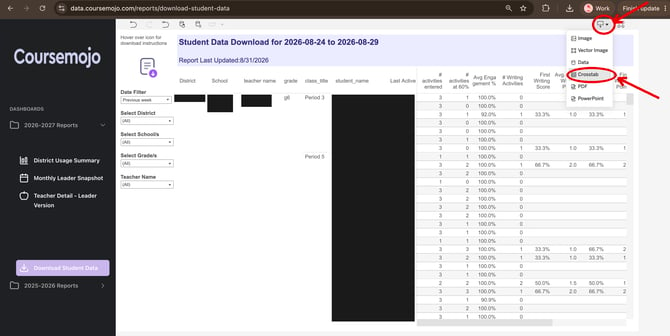
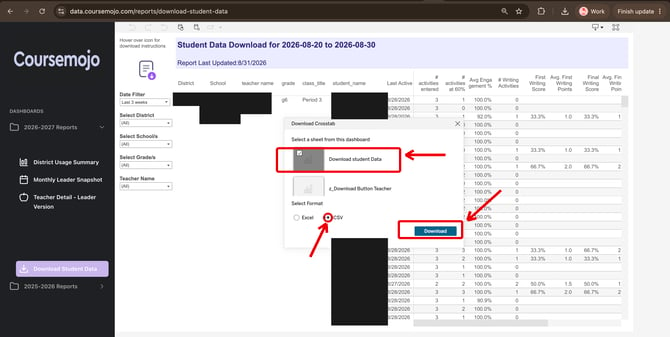
- Filter by teacher name and week.
- To download: click the download button in the top right corner → select Cross Tab → select CSV.
5. Bucket Override Report
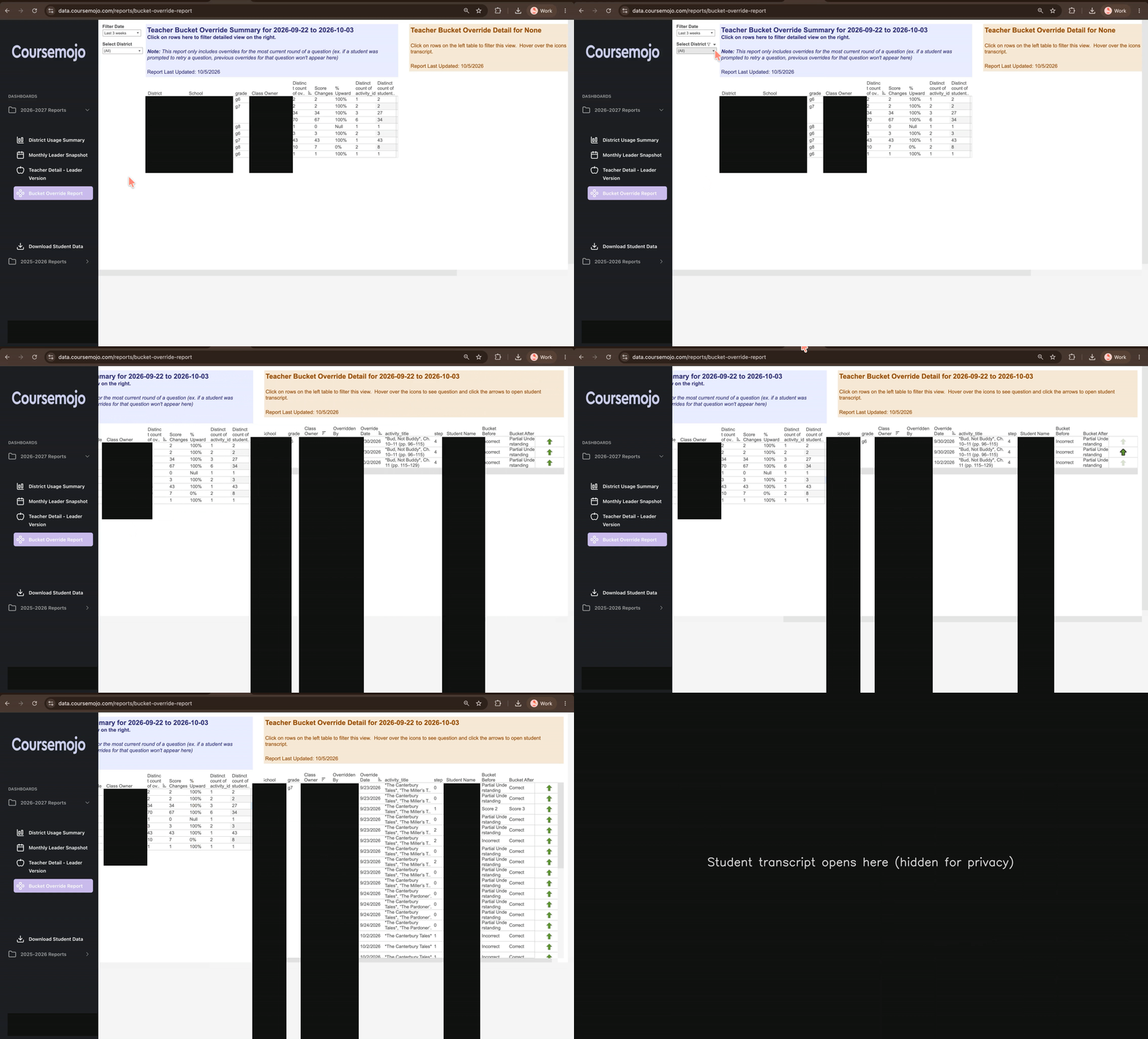
This report shows where teachers have overridden Mojo's score bucket on a student's response, so you can see how often it happens and where.
- Use the Filter Date dropdown to choose the time range, and Select District to narrow by district.
- The left table summarizes overrides by teacher, including the number of overrides, score changes, and the % that moved upward. Click a row to filter the detail view on the right.
- The right table lists each override: who made it, when, the activity, the student, and the Bucket Before and Bucket After. Hover over the icons to see the question, and click the arrows to open the student transcript.
Note: This report only includes overrides for the most recent round of a question. If a student was prompted to retry, earlier overrides for that question won't appear.
6. Inactive Teacher List (coming soon)
This report will show teachers who haven't used Coursemojo, so you can follow up before they fall behind.
Important Notes
- Reports update weekly on Monday afternoons. Any teachers who log in this week will show up in reports next Monday — the best time to check is Monday evening or Tuesday morning.
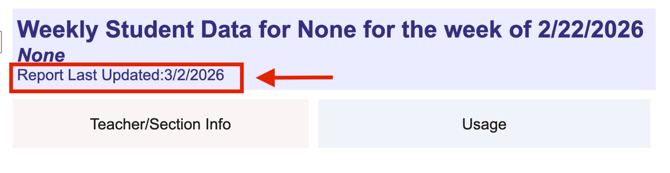
- Always check the "Last Update" date at the top of each report view to confirm whether the data has refreshed for the current week.
- The weekly update applies to Reports only — the Teacher Lists tab shows real-time data.
- You can always hover over the info icon on any report page for more details about what you're viewing.
Note: We're also working on a more regular refresh cadence that will be available later this Fall — stay tuned!
Need Help?
Email help@coursemojo.com or click the Feedback button inside Coursemojo.